At a customer site
Scan tagged equipment while your team is on site. Give the office a record of when and where it was detected.
 contact@on-sight.co.nz
OnSight Mobile Gateway
Use your phone to detect supported Bluetooth tags. Your team can review the sightings in OnSight Command, our web app.
For iPhone and Android
Already using OnSight? Get the app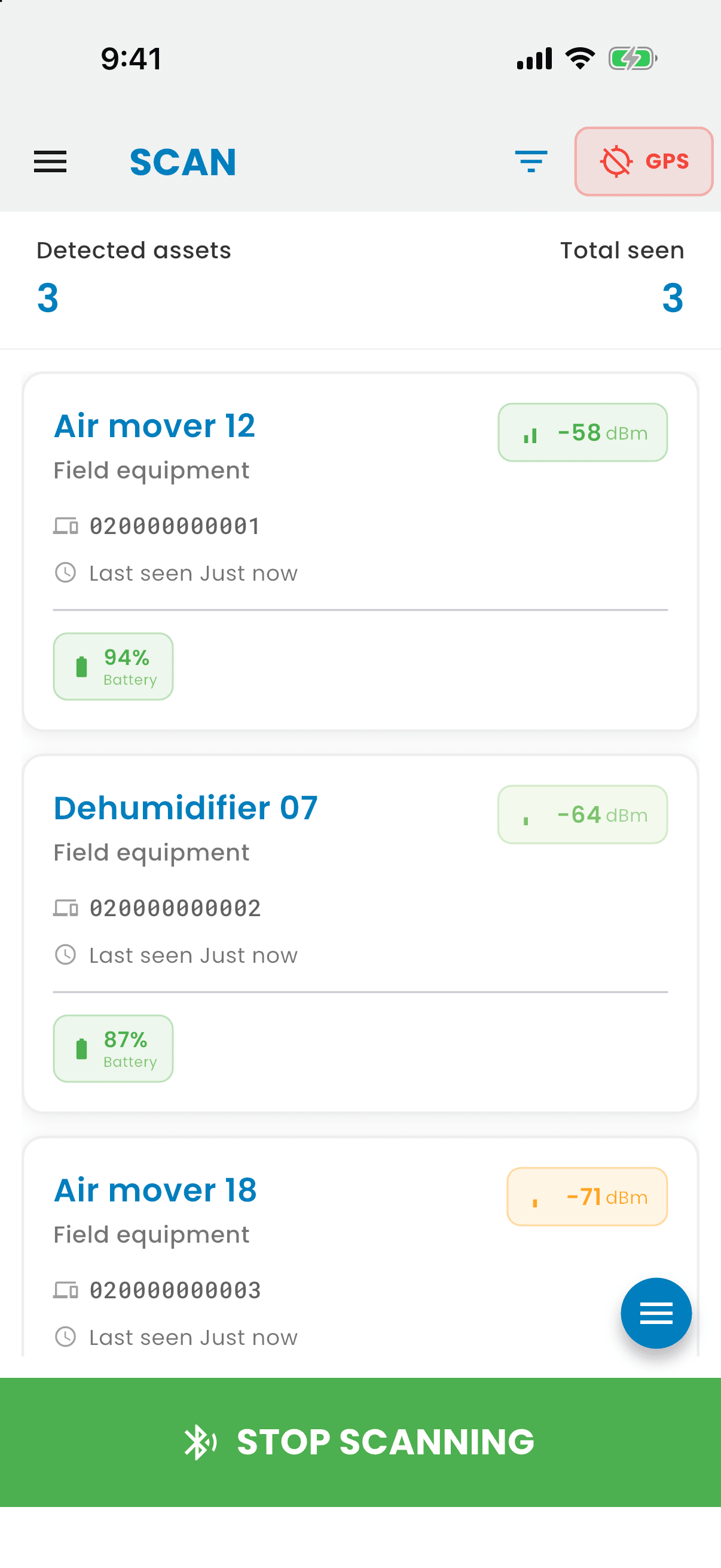
Attach a supported Bluetooth tag and link it to the equipment in your OnSight account.
Start a scan and keep the app open as you move within Bluetooth range of the tags.
With a company connection and internet access, the app sends readings to Command. Check the sighting time to confirm a reading arrived.
Open Generator 12 in Command and review its sighting times, locations and detection sources. Follow the short example below.
Open Generator 12 to follow one piece of equipment.
Check the latest sighting time before arranging a pickup.
Oct 29, 5:00–11:00 AM
Select Generator 12 to continue the example.
Phone GPS adds a location to the sighting. With location permission and GPS enabled, a sighting can include the phone's position when it detected the tag. Use the sighting time to decide where to check next.
Run a scan where your people already work. Each detection gives your team another record to check later.
Scan tagged equipment while your team is on site. Give the office a record of when and where it was detected.
Check which tagged items your phone detects before leaving. Use search and the Linked assets filter to narrow the list.
Use fixed gateways at the depot and phones in the field. Compare sightings when checking where equipment was last seen.
Tell us which equipment moves between your sites and which phones your team uses. We will help confirm tag compatibility and a scanning routine that fits the job.
Discuss your equipment and sitesA tag programmed with the Command scan link can open the app and start scanning. Set up your account and company connection first, then follow the guide to prepare the scan link.
Read the scanning guideYou can also download and upload stored readings from supported ZenMeasure and SIGMAWIT loggers when they return from a trip. This is a separate workflow from field scanning.
Read the logger upload guideThe phone detects supported Bluetooth tags and sensors. To show a device as a named asset, its hardware must be linked to that asset in your OnSight company. We can help confirm suitable tags and how to fit them to your equipment.
They need to use a Bluetooth format supported by the app and be linked to your equipment in OnSight. Tell us the tag model and which phones you use so we can check compatibility.
Open the asset in Command and look for a new sighting at the time you scanned. A tag appearing on your phone confirms local detection. If a new sighting has not arrived in Command, check the company connection and internet access, or contact OnSight.
A sighting records that a tag was within Bluetooth range of the phone. With GPS enabled, the phone can attach its own location. This is the phone’s position at detection, not a precise position measured by the tag. Check the time of the last sighting before acting.
Keep the app open for field scans. Background scanning is experimental on both iPhone and Android. We will confirm a scanning routine for your phones before rollout.
Your phone can still detect nearby tags, but readings need an internet connection to reach Command. When an active scan reconnects, it resumes sending recent readings. The app does not save a complete offline history to send later.
A phone is useful for attended scans as people move between locations. A fixed gateway is usually a better fit for a location that needs ongoing coverage. We can plan a combination of fixed gateways and phones around where your equipment moves.
Install the app, sign in with your OnSight account and connect your company. Keep the app open while scanning, then check for a new sighting in Command.
Open the setup and scanning guideNeed help with tags, company setup or scanning? Contact OnSight.
Tell us about your equipment, sites and field workflow.