
Reports let you analyse and export Command data for a defined set of assets and time period. Use them when you need an operational summary, an investigation record, a maintenance worklist or evidence for a quality or compliance process.
Open Reports, select the report you need, set its filters, run it, then review or export the result.
Choose a report
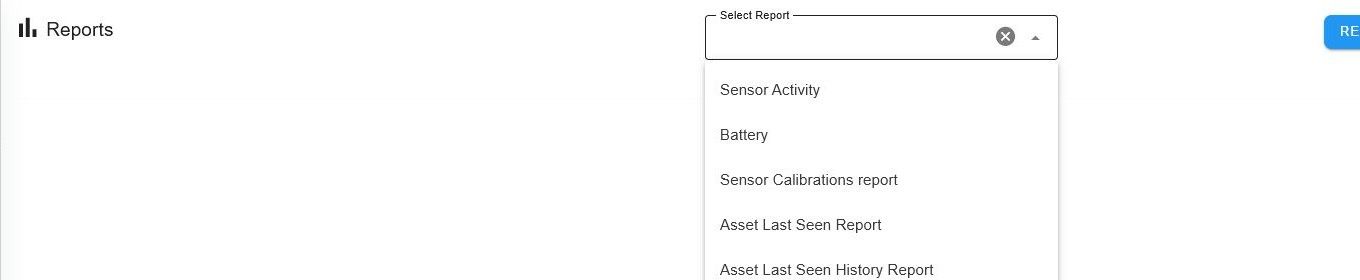
Select the report that matches the operational question you need to answer.
Select a report
The report selector includes the reports enabled for your company. Common report types include:
- Sensor Activity — sensor readings and trends across selected assets and dates.
- Battery — battery condition across Command hardware, including devices below your chosen threshold.
- Asset Last Seen — the most recent known observation for selected assets.
- Asset Seen History — where selected assets were observed during a chosen period.
- Sensor Calibrations — calibration activity and records for compatible sensors.
Some reports depend on the modules enabled for your company. If a report is not available, contact your Company Admin or OnSight team to confirm whether it is enabled for your setup.
Start with a focused question
Before running a report, decide what you need to answer. For example:
- Did selected temperature sensors stay within the expected range during a shipment?
- Which devices need a battery replacement?
- Where was a particular set of assets last seen?
- Which zones did people or equipment pass through today?
- What calibration records are needed for audit?
Then select only the relevant assets or Asset Groups and the shortest useful date range. You can widen the selection if the first result does not answer the question.
Use filters carefully
Most reports use a common filter pattern: choose the reporting dates, select assets or Asset Groups, and choose the relevant sensor types where applicable. The available sensor choices reflect the data supported by your Command hardware.
A report is only as meaningful as the data selection behind it. Check that the assets, dates and sensor types match the operation you are investigating before you share or export the result.
Export and verify results
Where available, use the report’s Export action to download the results for further analysis, sharing or record keeping. Review unexpected values against the asset record, Map, Status view and incoming hardware data before treating a report as evidence of an operational event.
For a real-time monitoring view, use Status or a dashboard instead. Reports are best for analysing, documenting and sharing a defined slice of history.