
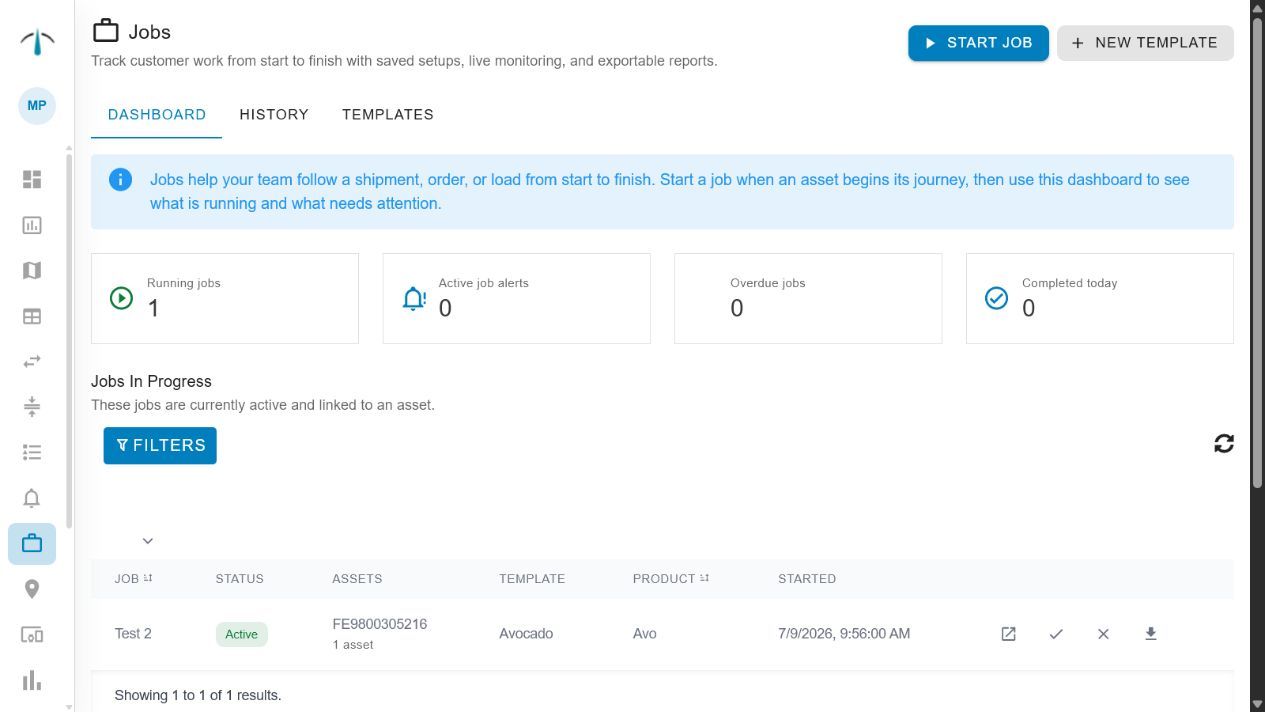
The Jobs dashboard provides a single view of running work, active job alerts and completed jobs.
The optional Jobs module turns a specific product process into a self-contained monitored record. Use it when you need to follow a shipment, order, load, storage event or similar operation from start to finish—not as a general task-management tool.
A Job brings together the assets being monitored, the customer and product context, an alerting profile, and the report settings needed for that one operational event.
Templates and job runs
A Job Template is the reusable monitoring profile. It can define the alert rules, report sensors and other settings that should apply whenever a particular type of work begins.
A Job Run is one real execution of that template. For example, a third-party logistics provider storing refrigerated products could create a Vaccines template with the approved temperature alerts and reporting configuration. Each time a vaccine consignment is received, the team starts a new Job Run using that template and the actual assets involved.
What happens when a job starts and ends
When a Job Run starts, Command applies the template’s alerting profile to the selected assets for the monitoring window. The resulting alerts are specific to that job, allowing the team to respond to exceptions during the shipment, order or process.
When the Job Run ends, Command removes that job’s alerting profile. This prevents a temporary process-specific alert from continuing to apply after the monitored event is complete.
Complete a job only once the relevant process has ended and the monitoring record is ready to be finalised. Cancel a job when it should not be treated as a completed operational record.
Use the Jobs dashboard
The Jobs dashboard shows Jobs In Progress and Alerts Needing Attention. Use it to see which monitored events are active, identify open breaches and open the individual job record for the full monitoring window, assets, alerts and sensor data.
From the job record, you can review the customer details, tracked assets, sensor charts and alert breaches, then export the job’s sensor data when the process is complete.
Typical workflow
- Create a Job Template for the product or process type.
- Start a Job Run when the real event begins.
- Select the actual assets and enter the customer/job details.
- Monitor the active run and respond to its alerts.
- Complete the run when the event ends.
- Export the resulting data or use it in the required compliance record.
The next articles explain how to create templates and run this workflow.