
Command provides two related presence reports. Choose the one that matches the question you need to answer:
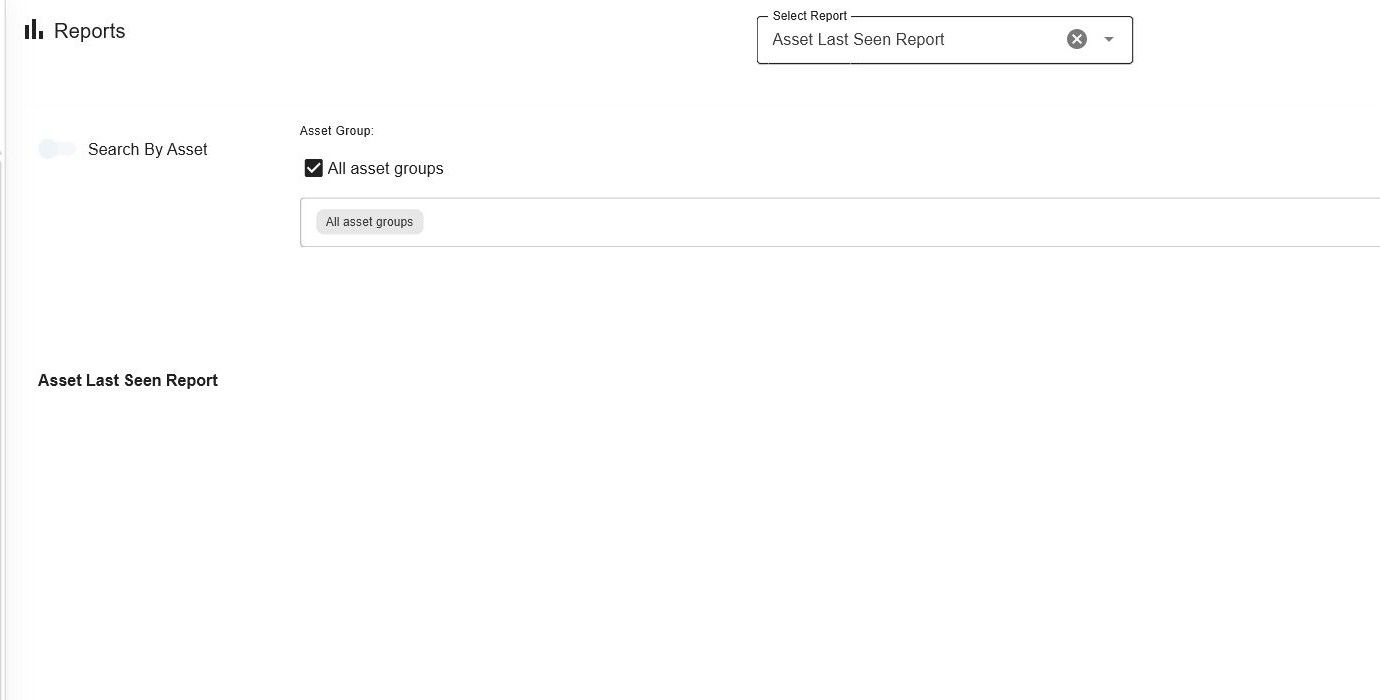
Choose the asset groups to include, then generate the report.
- Asset Last Seen answers “where was each selected asset most recently observed?” Use it for current operations, mustering and a quick whereabouts check.
- Asset Seen History answers “where was this asset or person during this period?” Use it for investigation, audit and historical evidence.
Both reports rely on the sites, zones, gateways and hardware associations that form your digital twin. Check those foundations when a result is unexpected.
Use Asset Last Seen for current operations
Select Asset Last Seen when you need the latest observation for a set of people, equipment or other assets.
- Open Reports and select Asset Last Seen.
- Select the relevant assets or Asset Groups.
- Select Generate.
- Review each asset’s latest zone, inferred address and last-seen time.
Use the optional filters to focus the worklist:
- include or exclude selected Zones;
- set a Last seen age in days to focus on assets that have not been observed recently;
- filter by inferred address; and
- group results by Zone or Inferred address.
This is particularly useful for people monitoring and mustering, such as checking the last known zone for people on a job or construction site.
Export the current result as CSV when you need to share or retain the worklist.
Use Asset Seen History for an audit trail
Select Asset Seen History when you need to examine where selected assets were observed across a chosen time period.
- Open Reports and select Asset Seen History.
- Select the assets to investigate.
- Set the report date range.
- Select Generate.
- Review each asset’s site/zone presence, including the start and end time of each observation.
Use this report to reconstruct a journey through operational areas, confirm time spent in a zone, or provide an evidence trail of where an asset or person was seen during a period. Export the result to Excel when the detail needs to be retained or shared.
Investigate an unexpected result
If an asset is missing, appears in the wrong zone or has an unexpected gap, check:
- that the correct hardware is linked to the asset;
- the gateway coverage and its assigned zone;
- the zone boundary and any recent changes to it; and
- the selected assets and report interval.
Use Review asset details and history and Use the live map for the detailed investigation.