
Use the Battery report to understand the current battery condition across Command hardware and plan maintenance before devices stop reporting. It is particularly useful for organising battery replacement work and identifying hardware that should be replaced when its battery reaches end of life.
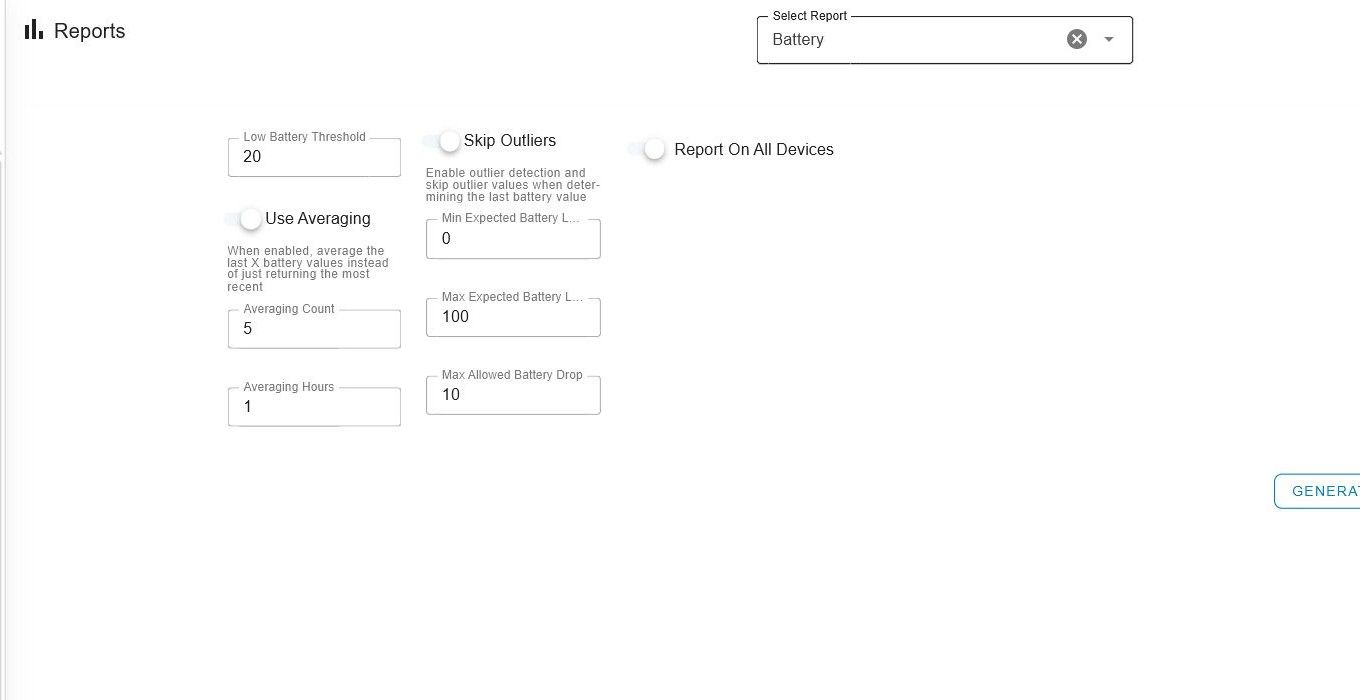
Set the battery threshold and review averaging options before generating the report.
Generate the report
- Open Reports and select Battery.
- Choose Report On All Devices, or select the specific hardware you want to review.
- Keep the Low Battery Threshold at the normal starting value of 20%, unless your operating requirements call for a different trigger point.
- Select Generate.
- Filter the results to low-battery devices and plan the required work.
The report shows a summary of average battery level, total devices, devices with battery data and the number below the selected low-battery threshold.
Plan maintenance or replacement work
Use the device details table to prioritise the work. It includes the asset name, battery level, last battery report time and time since the last reading. Filter to Low Battery: Yes to make a practical maintenance list.
Before scheduling work, check whether the device has a replaceable battery and whether the asset is accessible:
- For hardware with a replaceable battery, plan the battery replacement.
- For hardware with a non-replaceable battery or hardware that has reached end of life, plan to replace the hardware itself and link the replacement to the asset.
Group work by location, zone, route or operational team where that reduces downtime and travel.
After replacing a battery or device, check that the asset reports again and that its latest battery value appears as expected in Command.
Understand the battery values
The report normally uses the most recent battery value. You can turn on Use Averaging to average recent battery readings instead, which can be useful if readings fluctuate. The report can also skip outlier values where a sudden result looks unreliable.
For normal maintenance planning, leave the advanced averaging and outlier settings at their defaults. Adjust them only when you are investigating inconsistent readings and understand the effect on the result.
A low battery result is a maintenance signal, not a guarantee that the device will stop immediately. Consider the device’s recent reporting, operating environment and the importance of the asset when deciding the urgency of replacement.
Investigate a concerning device
Select the asset link in the report to open its record. Check the linked hardware, last update and recent history. If the device has not reported for a long time, investigate connectivity and gateway coverage as well as battery condition.
For a broader current-data check, see Use Status to monitor current conditions.