
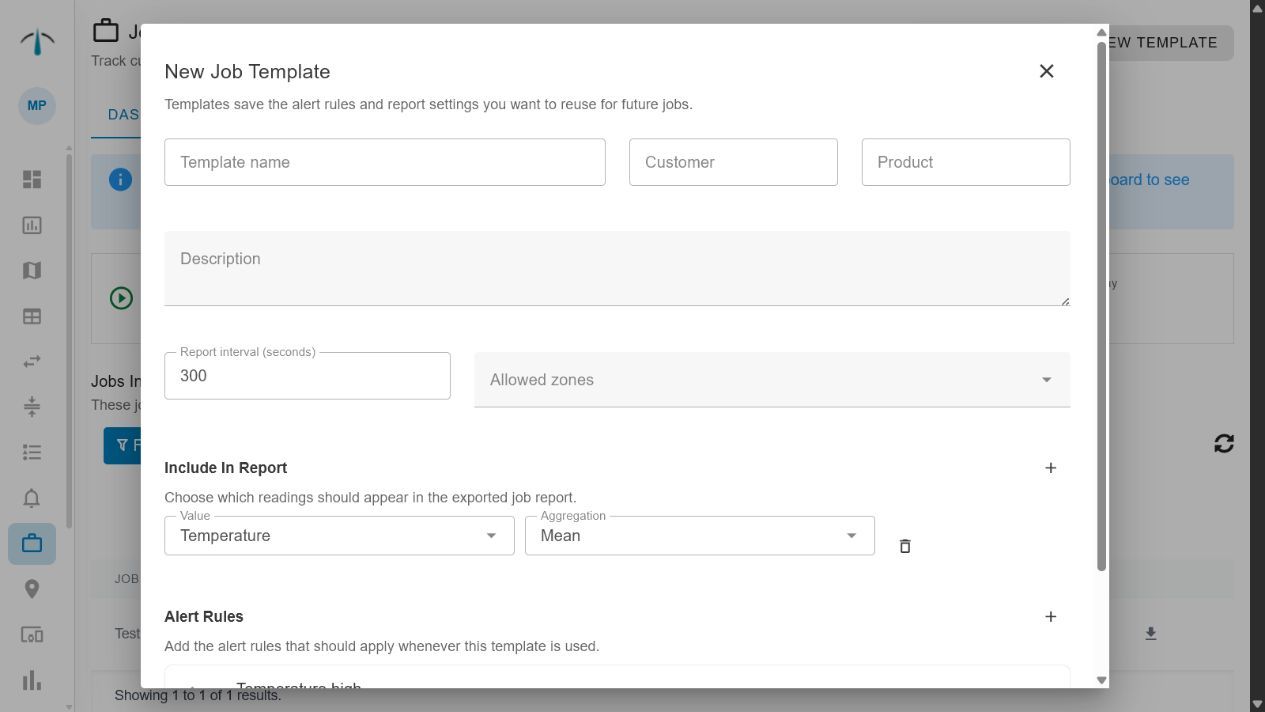
A job template saves the customer, reporting and alert settings that are reused for future job runs.
A Job Template is the reusable monitoring profile for a product or process. Create templates so operators can start a consistent Job Run without rebuilding the alert rules and reporting setup every time.
For example, a refrigerated logistics provider could create a Vaccines template with the correct temperature alert profile, report sensors and the refrigerator zone that marks the start of monitoring.
Create a template
- Open Jobs and select Templates.
- Select New Template.
- Enter a clear Template name.
- Add the customer, product and description where they are standard for the workflow.
- Set the report interval, allowed zones, report sensors and alert rules.
- Select Save.
Use names that tell an operator when to use the template, such as Vaccines – refrigerated storage, Chilled dispatch or Customer A – cold chain.
Define the template details
- Customer and Product — prefill the typical context for the process. These details can be reviewed when a Job Run is started.
- Description — explain the operational purpose, handling requirements or response expectations.
- Report interval (seconds) — controls the interval used for the job’s report data. Use an interval appropriate for the process: enough detail to evidence the condition, without creating unnecessary volume.
Use Allowed Zones to start monitoring at the right point
Allowed Zones define where the Job Run can begin. This lets the team prepare or create the job in advance, but have its monitoring start only when the asset enters the relevant operational zone.
For example, a user can set up a refrigerated-product job in the office. The Job Run starts once the asset is actually in the Refrigerator zone, rather than when the paperwork is completed.
Select the zone or zones that represent the real start of the controlled process. This helps ensure the monitoring window and alert profile match the physical operation.
Choose what appears in the job report
Under Include In Report, add the sensor values that should be shown in the job’s exported record. For each value, choose its aggregation, such as the appropriate summary or trend calculation for that measurement.
Include only the readings needed to evidence the process. A refrigerated-products template would normally include temperature; another process may need humidity, battery or a different supported sensor value.
Add the alert rules
Under Alert Rules, add the conditions that must be watched for every Job Run created from the template. These use the same alert builder as asset alerts: choose the sensor or device state, threshold conditions, breach/recovery timing and any webhook integrations.
When a Job Run starts, Command applies these rules to the job assets. When the job ends, Command removes this temporary job-specific alerting profile.
Maintain templates carefully
Review a template whenever the product requirements, operating zones, hardware, thresholds or reporting needs change. Editing a template improves future Job Runs; check active runs separately before assuming their monitoring profile has changed.
For the end-to-end model, see Understand Jobs.