
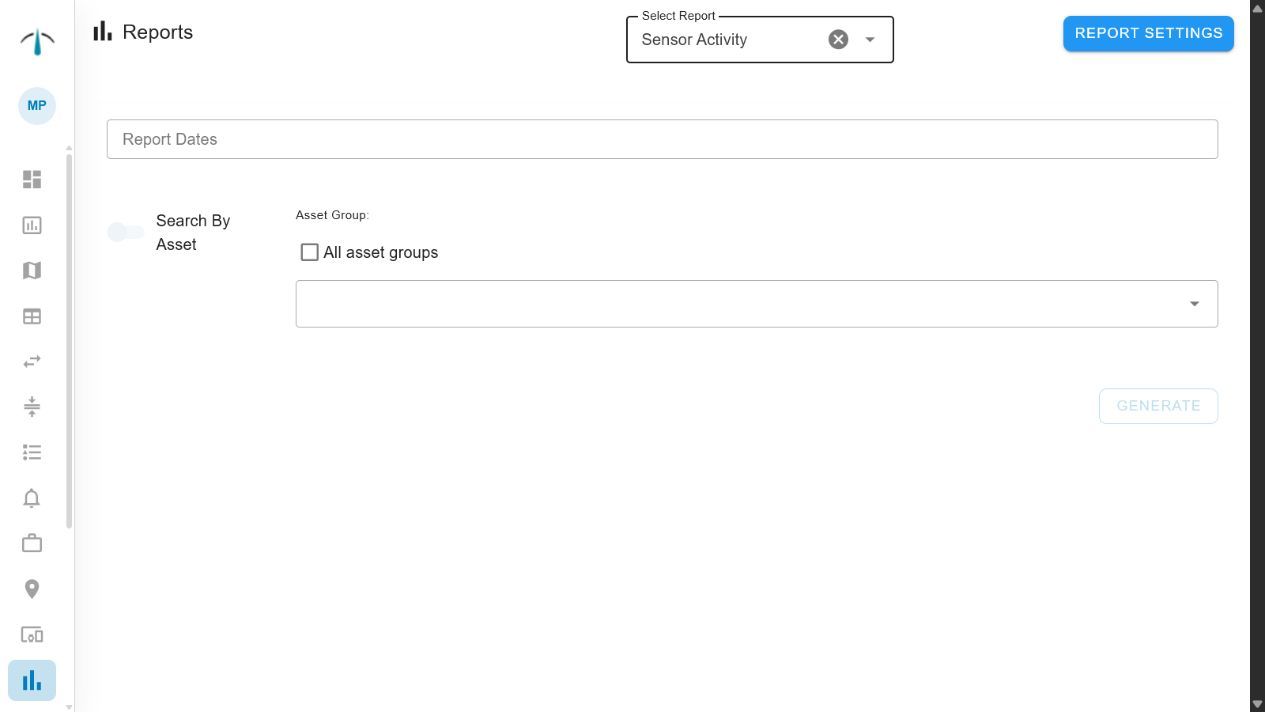
Select a report type, date range and assets before generating a sensor activity report.
Use the Sensor Activity report to produce compliance evidence from Command sensor data. Select the reporting interval, the assets or Asset Groups and the sensor types required, then export the result for a customer, auditor, regulator or other third party.
This report is best when you need to demonstrate what a sensor recorded during a specific period—for example, temperature data during a shipment, storage period or production process.
Create the report
- Open Reports.
- Select Sensor Activity.
- Set the Report Dates to the exact compliance interval you need.
- Select the relevant assets or Asset Groups.
- Choose the sensor data types to include.
- Generate the report and review the charted readings.
- Select Export to download the data as CSV.
Command retrieves the selected sensor readings for the chosen period and presents them as charts before export.
Choose the right interval
The report interval is part of the evidence. Match it to the actual operational window you need to prove, such as the time a shipment was in transit or a product was stored under monitored conditions.
Check the start and end date carefully before exporting. A narrow, accurate interval is generally more useful to a third party than a broad report containing unrelated data.
Select the right assets and sensors
Choose the assets that were actually involved in the process, then select the readings relevant to the requirement—for example, temperature, humidity or another supported sensor type.
When reporting on several assets, use their Asset Group where it represents the required set. Otherwise select the individual assets so the exported record is precise.
Review before sharing
Check the chart for missing periods, unexpected values or an asset that should not be in the report. If the results are unexpected, verify the hardware assignment, asset history and gateway or upload context before issuing the export.
The CSV export can optionally include RSSI where it is useful for technical analysis. Leave RSSI out of a third-party compliance export unless signal strength is relevant to the recipient.
Keep the evidence understandable
When supplying the export, include the asset names, reporting interval and sensor types in the accompanying communication or record. This gives the recipient enough context to understand what the data represents and which operational period it covers.
For the broader reporting workflow, see Use reports in Command.