
Choose the right Command view
OnSight Command can be configured around different operational needs. The best place to start depends on whether your team is primarily tracking assets, monitoring sensor conditions or responding to operational exceptions.
Navigation at a glance
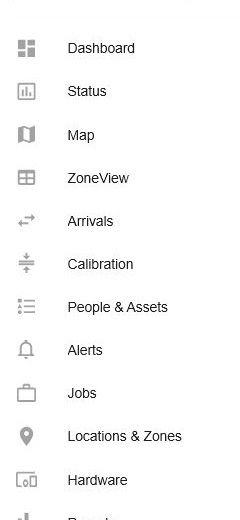
Use the navigation menu to move between the main Command workspaces.
Use Map to understand your digital twin
If you use Command for asset tracking, Map is the fundamental page. It brings your sites, zones and tracked assets together so you can understand the digital twin of your operation at a glance.
Use Map to see where assets are, understand them in relation to the zones you have configured and investigate movement or activity as it happens.
Use Dashboards for sensor monitoring
If your operation relies on ongoing sensor monitoring, set up one or more Dashboards. A dashboard lets you bring the readings, charts and asset groups that matter to a particular team or process into one focused view.
Use dashboards when you need to monitor sensor conditions regularly—for example, temperature, battery state or another critical measurement—without repeatedly searching for the same assets.
Use Status for a quick operational view
Status is useful when you need a concise view of current conditions and exceptions. It is a practical alternative to a dashboard for teams that do not need a tailored sensor-monitoring layout.
Other Command areas
Use the navigation menu to access the operational areas enabled for your company, including:
- People & Assets for asset records, hardware associations and history.
- Locations & Zones to configure the operational map context.
- Alerts to review active and historic alert activity.
- Reports to analyse historic data and produce operational evidence.
- Hardware and Users for authorised administrators.
- Jobs, Calibration, Arrivals and other modules where they are enabled for your company.
Your navigation can differ from another user's because modules and administration actions are enabled according to your company's configuration and your access level.
Start with the view that fits your work
For asset tracking, start with Map. For sensor monitoring, create a Dashboard. For a fast operational check, use Status.