
Before You Start
Make sure you have:
- The OnSight Connect app installed on your device
- A valid OnSight account email address and password
- An active internet connection (Wi-Fi or mobile data)
If you don't have an account, contact your OnSight administrator.
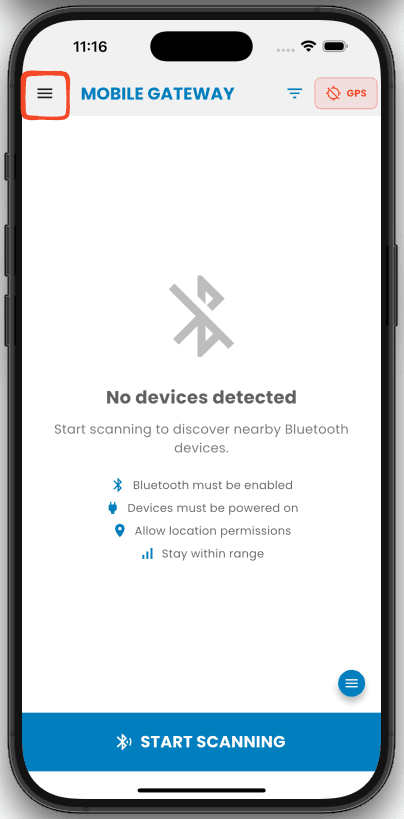
Step 1 — Open the Navigation Drawer
Launch the app. It opens to the Home (scanner) screen.
Tap the menu icon (☰) in the top-left corner to open the navigation drawer.
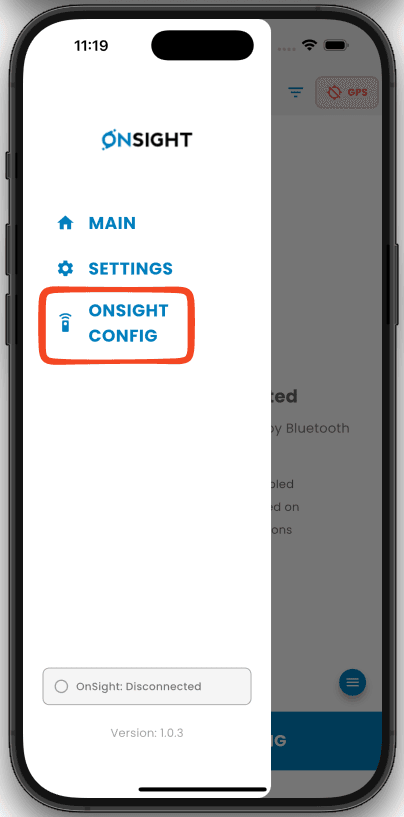
Step 2 — Open OnSight Config
In the navigation drawer, tap OnSight Config.
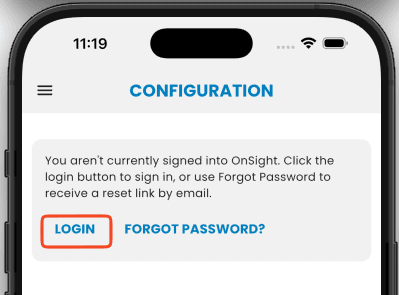
Step 3 — Tap Log In
On the Configuration page, tap the Log in button.
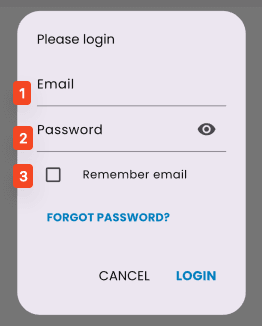
Step 4 — Enter Your Credentials
On the login screen:
- Email — Enter your OnSight account email address (e.g. user@company.com). The app validates the format before submission.
- Password — Enter your password. It must be at least 8 characters. Tap the eye icon on the right to show or hide what you've typed.
- Remember my email (optional) — Check this box if you want the app to pre-fill your email address next time.
Step 5 — Tap Log In
Tap the Log in button. A loading indicator appears while the app authenticates your credentials.
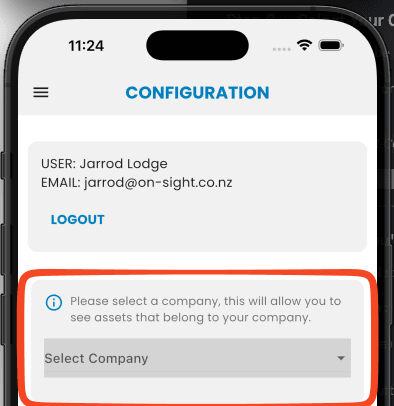
Step 6 — Select Your Company
After logging in, you will be prompted to select a company.
Tap the Select Company dropdown and choose the company your account belongs to. This determines which assets and devices are visible to you in the app.
In a soon to be released update, if you only belong to one company it may be selected automatically. If you belong to multiple companies, make sure you select the correct one.
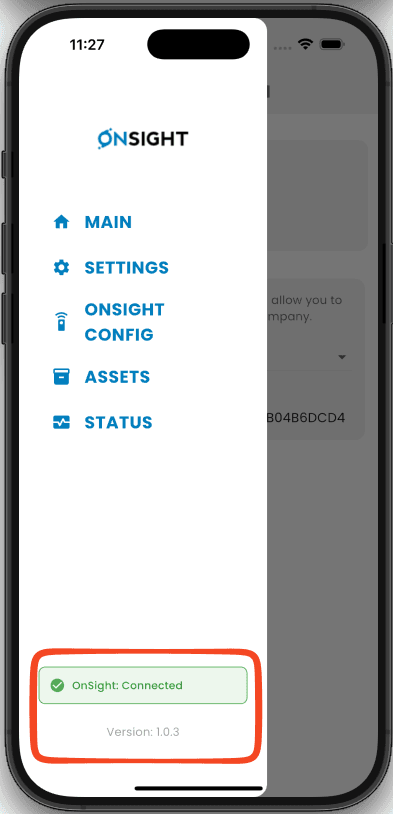
Step 7 — Confirm You're Logged In
After configuration you can confirm you are setup by
Check the menu and at the bottom will be an OnSight connected in green.
Staying Logged In
Your session is saved securely on the device. The next time you open the app, you will be logged in automatically — no need to enter your credentials again.
Troubleshooting
Failed to login
Your email or password is incorrect. Double-check your credentials and try again.
Please enter a valid email
The email format is wrong. Make sure you've entered a full email address, for example user@company.com.
Password needs to have at least 8 characters
The password you entered is too short. Enter your full password.
App is stuck on the loading screen
This is usually a network issue. Check your Wi-Fi or mobile data connection and try again.
Account locked or not recognised
Your account may not be active or may have been locked. Contact your OnSight administrator for help.