
Use Status for a fast operational view of the latest data Command has received. It is especially useful when you monitor sensors across many assets and need to see which groups are current, which are falling behind, and what needs investigation.
For asset tracking, the Map is usually the primary view. For sensor monitoring, Status provides the quick condition check before you open a detailed asset, dashboard or alert.
Status at a glance
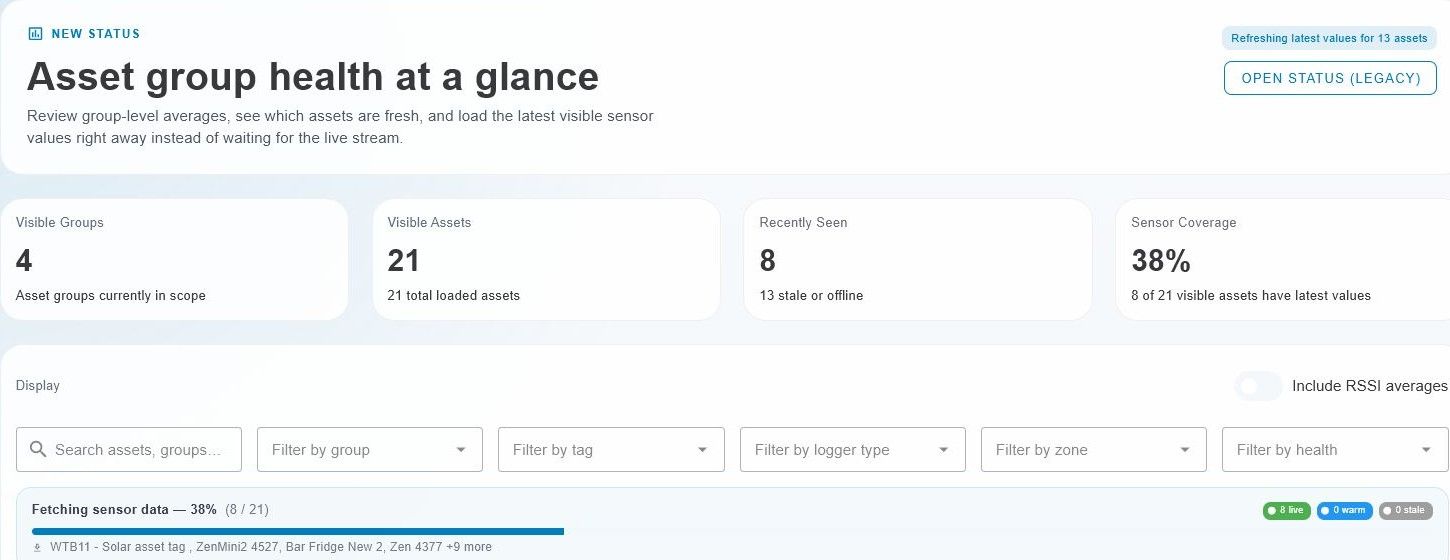
Use Status to review current group health and focus the view with filters.
Read the group summary
Status organises assets by Asset Group. For each group, it shows:
- the number of assets;
- averages for the latest relevant sensor values, such as temperature, humidity, battery or other supported measurements; and
- a health count for Live, Warm and Stale assets.
Expand a group to see the individual assets, their last-update time and their latest available sensor readings.
Understand health states
Health describes how recently Command has received sensor data for an asset:
- Live — Command is receiving real-time data.
- Warm — Command has received data recently, but it is not currently live.
- Stale — Command has not seen data for quite some time and the asset may need attention.
Use the health states to prioritise your response. A stale asset does not automatically mean a fault—it may be out of range, intentionally inactive or travelling—but it is a useful prompt to check the operational context.
Filter to what matters
Use the filters at the top of Status to focus the view:
- search by asset, group or tag;
- filter by Asset Group;
- filter by one or more Tags; and
- filter by health state: Live, Warm or Stale.
This makes it easy to review a particular operational set, such as one location, fleet, production line or assets carrying a particular tag.
Refresh and investigate
When you expand a group, select the refresh action on an individual asset to load its latest sensor values. Then open the asset record when you need to check linked hardware, battery information, alerts, calibration or detailed history.
If an asset is stale unexpectedly, check:
- whether the correct hardware is linked to the asset;
- whether the device is powered and within range of the required gateway or receiver;
- the asset’s last known location and recent history; and
- any relevant gateway connectivity or alert information.
For a device-by-device investigation, see Review asset details and history.