
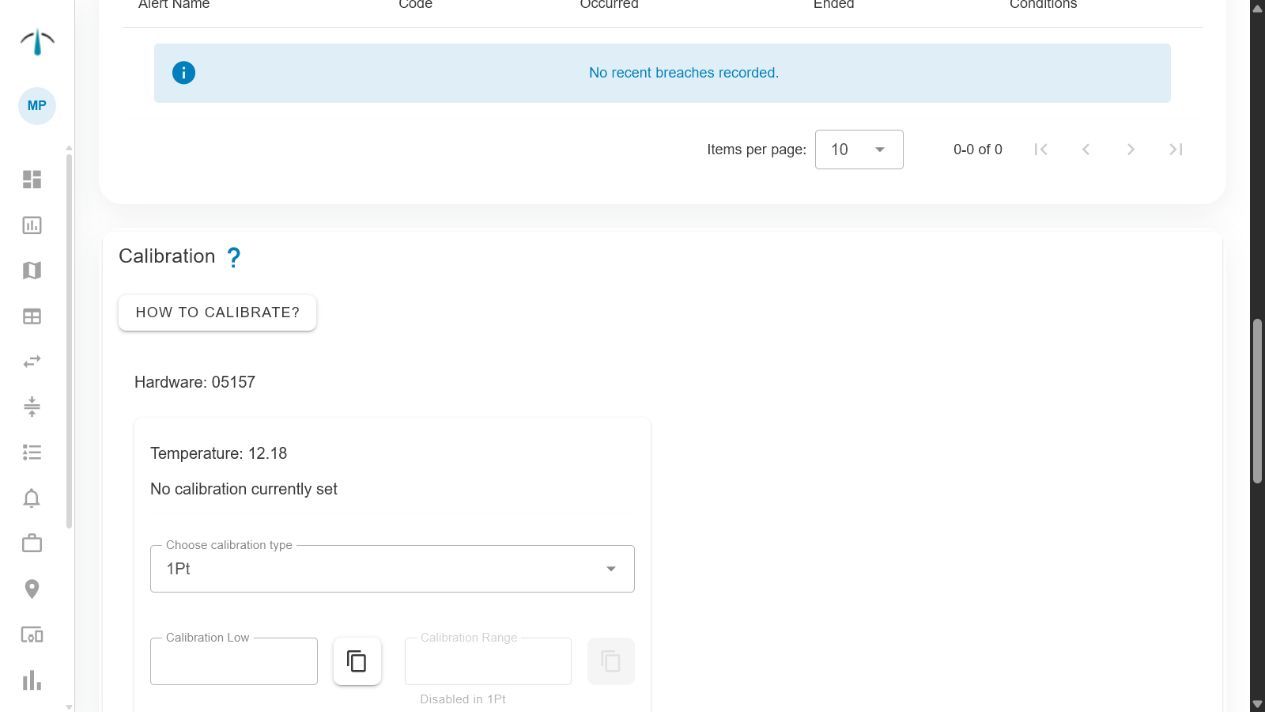
Use the asset calibration panel to select the calibration method and enter stable reference values.
Calibration lets you correct a compatible asset sensor when its reading differs from a known, trusted reference. It is commonly used for temperature monitoring where accuracy is required for a business, quality or compliance process.
Command measures the difference between the sensor reading and the reference value you provide, then applies that calibration correction to the raw data source used by Command. The physical device is not changed.
Example: ice-water check
A simple temperature calibration reference is a properly prepared bucket of icy water. The expected temperature is 0.0 °C. Place the temperature probe in the reference environment, allow it to stabilise, and compare the Command reading with 0.0 °C.
If the sensor reports a different value, enter 0.0 °C as the reference. Command calculates the difference and applies the correction to the raw sensor data used by the platform.
Use the reference method required by your organisation. For formal compliance, follow the approved procedure and use a suitable calibrated reference instrument.
Before you calibrate
- Confirm that the asset has compatible temperature hardware linked.
- Prepare a stable, trusted reference temperature.
- Place the sensor in the reference environment and allow its reading to settle.
- Open Calibration and select the assets to calibrate.
- Choose the calibration gateway used to receive the sensor readings during the session.
The Calibration view shows whether an asset already has calibration applied. Where an asset has multiple sensors, make sure you understand which primary sensor will be calibrated.
Calibrate one asset
- Start the calibration session after selecting the compatible assets and gateway.
- Select the asset to open its calibration panel.
- Check the current reading against the trusted reference.
- Enter the Reference temperature.
- Select Set calibration.
- Confirm that Command records the calibration as applied.
Use Reset calibration only when the existing correction should be removed.
Bulk calibrate selected assets
Use Bulk Calibrate when several selected assets are in the same controlled reference environment and should all be calibrated to the same reference temperature. Review the asset list carefully before applying it, then enter the shared reference value and confirm the bulk action.
Do not use bulk calibration where sensors have been exposed to different reference conditions or have not stabilised.
Verify and retain records
After calibration, allow new readings to arrive and confirm the corrected result matches the expected reference. The calibration session keeps a history of the asset, reading, reference, old calibration and new calibration. Export the session to CSV or PDF where you need a quality or compliance record.
Review and repeat calibration according to your organisation’s requirements, sensor type and risk level.