
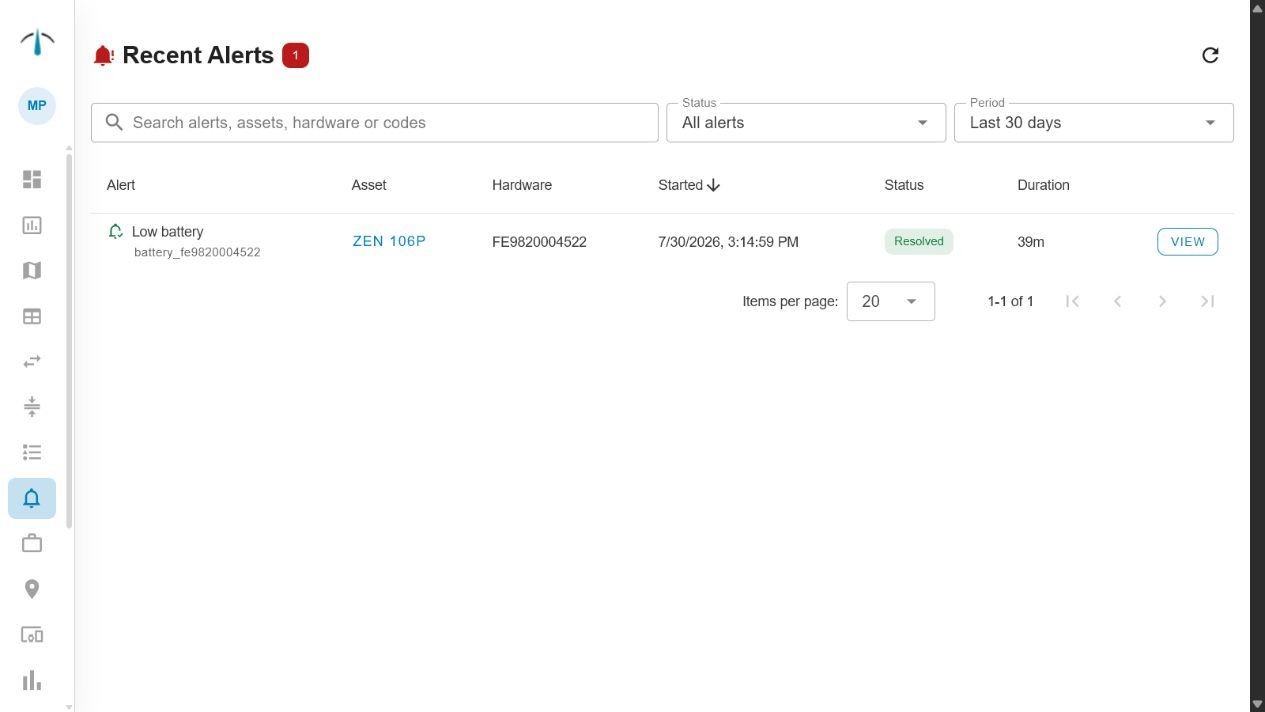
Use Recent Alerts to find and review active or resolved operational alerts.
Alerts let Command continuously watch the sensor, device or location conditions that matter to your operation. When a configured condition is breached, Command records the event and notifies the people or systems responsible for responding.
Once configured, alerts support the set-and-forget monitoring model: Command continues to watch your assets and raises attention only when the agreed process or condition is outside its expected bounds.
What an alert monitors
Alerts are configured against an asset and its linked hardware. Depending on the hardware and enabled sensor data, an alert can monitor conditions such as:
- a sensor crossing a threshold, for example temperature, humidity, battery or signal strength;
- a device going online or offline;
- a proximity, zone, GPS or button event; or
- another supported sensor value from the selected hardware.
A sensor alert can have one or more conditions. Device online/offline alerts use their duration settings instead of a numeric threshold.
When an alert becomes active and recovers
Each alert has two timing controls:
- Enter breach after — how long the condition must remain true before Command raises the alert.
- Exit breach after — how long the condition must return to normal before Command marks the alert as recovered.
These delays prevent brief fluctuations from creating unnecessary noise. Set them to match the tolerance of the process you are monitoring.
On an alert’s detail page, the sensor chart shows the configured threshold and a yellow marker at the point the required breach period is reached. This makes it clear when a reading crossed the threshold briefly without becoming an alert.
How notifications are delivered
Command can deliver alert notifications through:
- Email — for people who need to respond or stay informed.
- Webhooks — for sending alert-breach and recovery events to another system or workflow.
- WhatsApp — when your company has the OnSight WhatsApp add-on enabled.
Email and WhatsApp notification preferences are controlled on the Company Users page, where each user can be turned on or off for notifications. Use that page to keep the recipient list aligned with the people responsible for responding. Webhooks are configured on the alert itself for system integrations.
Choose delivery based on who needs to act. Email is suitable for most teams; webhooks are useful for integrations and automation; WhatsApp is useful where immediate mobile notification is required.
Investigate an alert
When an alert occurs:
- Identify the affected asset and linked hardware.
- Review the alert condition, its threshold and the time it became active.
- Open the asset to check its current readings, last update, battery and recent alert breaches.
- Use the Map, site/zone context or GPS history where location matters.
- Confirm whether the condition has recovered or needs an operational response.
Use the alert history to understand whether this is an isolated event or a repeated pattern.
Keep alerts useful
Review alert thresholds, timing and notification recipients when your process, equipment or operating hours change. Avoid alerts that no one can act on; a small set of well-owned alerts is more effective than a large number of noisy notifications.
For the setup steps, see Create an alert for an asset.