
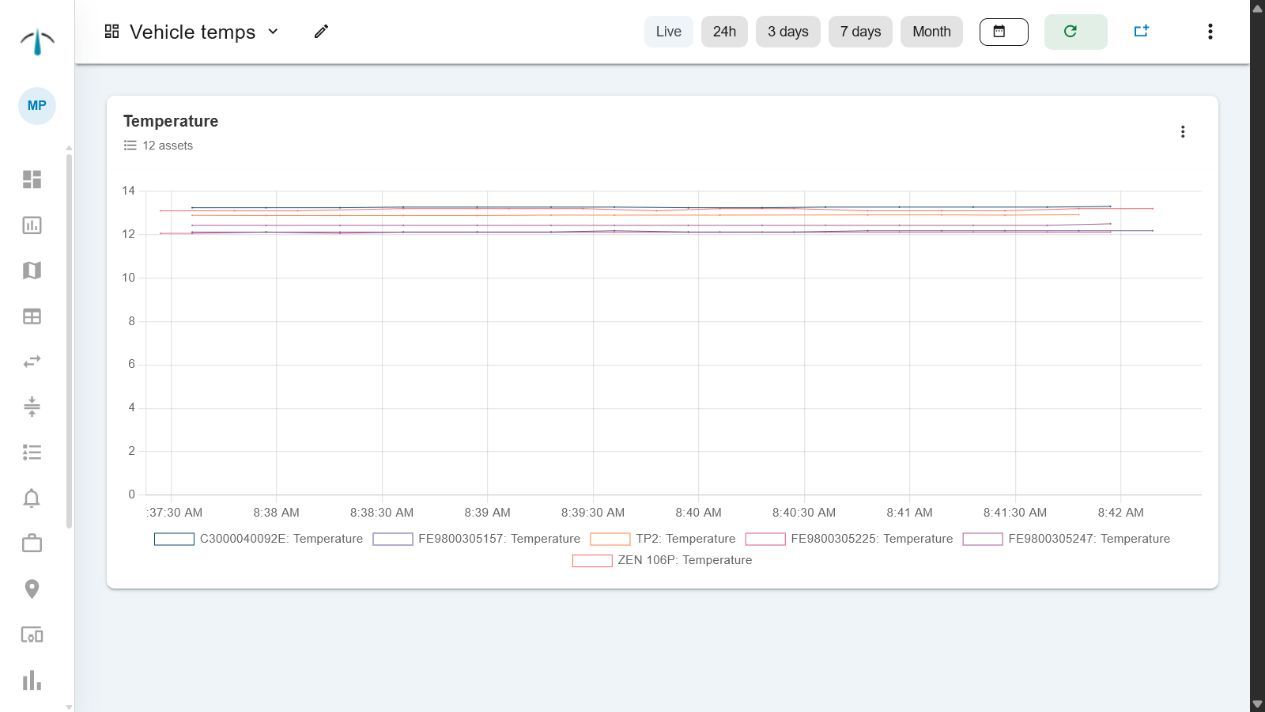
A shared Command dashboard can bring live sensor trends for selected assets into one view.
A Command dashboard is a shared monitoring workspace for your company. Build dashboards around the information a team needs to see quickly, then use widgets to bring the relevant live or historic asset data into one view.
Every user in the company can use the same dashboards. Treat them as shared operational tools: a well-named dashboard can give a workshop, operations team or manager a direct route to the signals that matter for that workflow.
When to use a dashboard
Dashboards are most valuable when monitoring sensors rather than following individual assets on the Map. Create one when you regularly need a particular live view, such as:
- temperature or environmental conditions across selected assets;
- equipment health and battery state;
- a production or operational area;
- assets currently seen in a zone; or
- a focused set of assets for a team, location or process.
For asset tracking and location investigation, use the Map. For a broad sensor health check, use Status. A dashboard is the focused view you return to for ongoing monitoring.
Create a dashboard
- Open Dashboard.
- Open the dashboard menu and select New dashboard.
- Enter a short, clear Dashboard name.
- Select Create dashboard.
- Select Add widget to begin building the view.
Choose a name that tells every user what the dashboard is for, such as Workshop temperature, Dispatch monitoring or Plant health.
Organise the shared layout
Once widgets have been added, you can:
- select a different dashboard from the dashboard menu;
- rename the current dashboard;
- drag widgets into a useful order;
- resize widgets to small, medium, large or extra-large; and
- remove widgets that no longer support the dashboard’s purpose.
Keep the most important exceptions and live readings prominent. Avoid putting every available metric on one dashboard—several focused dashboards are easier for everyone to use.
Refresh the information
Use Refresh historic data when you need the dashboard widgets to reload their historical data. Live widget data updates as Command receives new data from the selected assets.
If a dashboard does not show expected readings, first check that its widget contains the right assets and sensor types. Then confirm the linked hardware is reporting in Status or the asset record.
Delete a dashboard carefully
Use Delete dashboard only when the shared workspace is no longer needed. Because dashboards are available to everyone in the company, check with the people who use it before removing it.
For the widget configuration process, see Add a dashboard widget.