
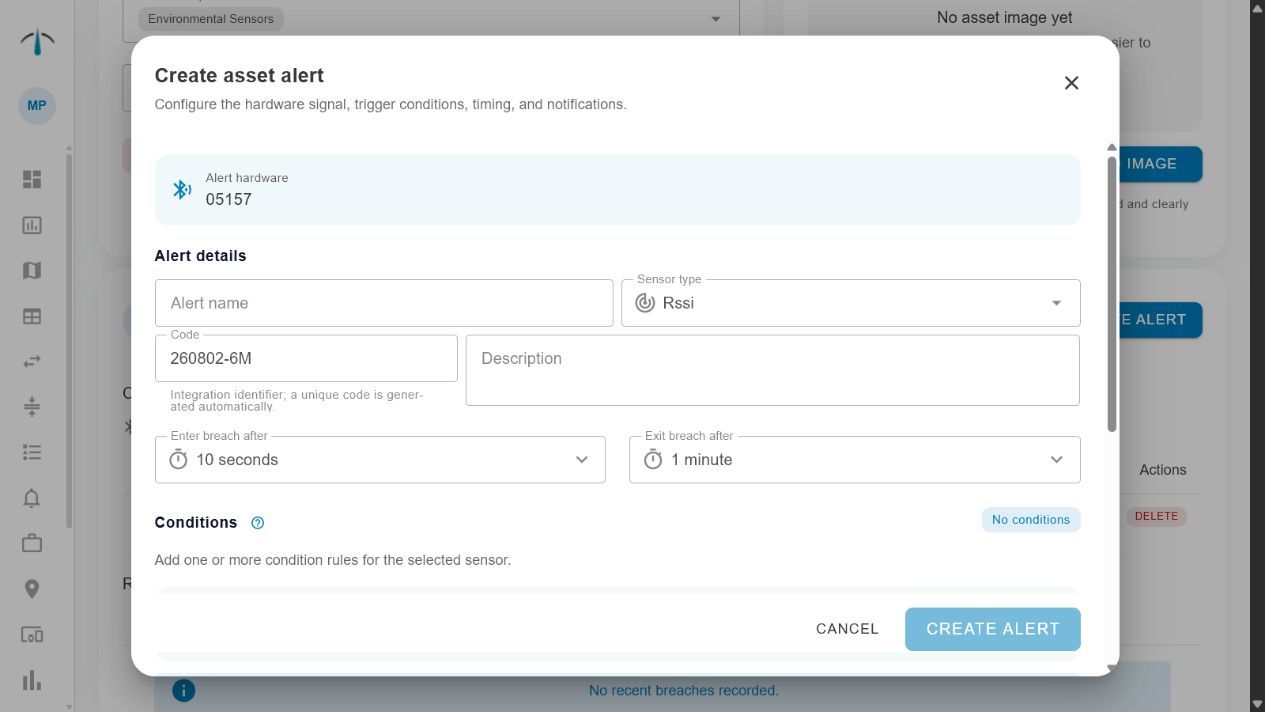
Create alerts from the asset's linked hardware, then configure the trigger conditions, timing and optional webhooks.
Create an alert on the asset and linked hardware that Command should monitor. The alert defines what counts as an exception, how long it must persist before it is raised, and how Command should notify your operation.
Start from the asset
- Open People & Assets and select the relevant asset.
- In Linked hardware, select Alerts beside the device to monitor.
- Select Add.
- Complete the alert details, conditions and notification settings.
- Save the alert.
Choose the hardware that provides the sensor or device state you want to monitor. If the expected device is not listed, first confirm that it is linked to the asset.
Complete the alert details
- Alert name — describe the operational exception clearly, for example
High temperature – Chiller 1orLow battery – Forklift 12. - Code — Command creates a unique code. Keep it, or replace it with a code your external systems recognise. It is mainly used by webhook integrations.
- Sensor type — select the sensor or device state to monitor.
- Description — record the purpose of the alert and the expected response, especially where more than one team may receive it.
Add conditions
For sensor alerts, add one or more conditions that define the breach. Select the comparison, sensor value and numeric threshold, then select Add to include the condition.
Where several conditions are used, choose the appropriate Match mode so Command knows whether all conditions or any condition must be met.
For example, a temperature alert may breach when temperature is above the approved maximum. A low-battery alert may breach when the battery value falls below the agreed minimum.
Device online and offline alerts are different: they do not need a numeric threshold. Their trigger is the selected device state.
Set breach and recovery timing
Set the duration controls to reflect the tolerance of the process:
- Enter breach after — the condition must continue for this long before the alert becomes active.
- Exit breach after — the condition must return to normal for this long before Command records the alert as recovered.
Use a short delay only where rapid action is necessary. A sensible delay prevents brief readings or connection changes from producing unnecessary notifications.
Configure notifications
Add a Webhook on breach when another system should receive a POST notification as soon as the alert becomes active. Add a Webhook on recovery when that system also needs to know that the condition has returned to normal.
Email and WhatsApp delivery are controlled through Company Users, where users are enabled or disabled for notifications. Make sure the people responsible for responding are enabled before relying on the alert.
Check the result
After saving, confirm that the alert appears under the hardware’s alerts on the asset page. Where practical, test the alert with a safe, expected condition and verify that the right notification arrives.
Review the alert after its first real use. Adjust the threshold or timing if it is too sensitive, too slow or does not match the operational response.
For an overview of alert behaviour and investigation, see Understand alerts in Command.