
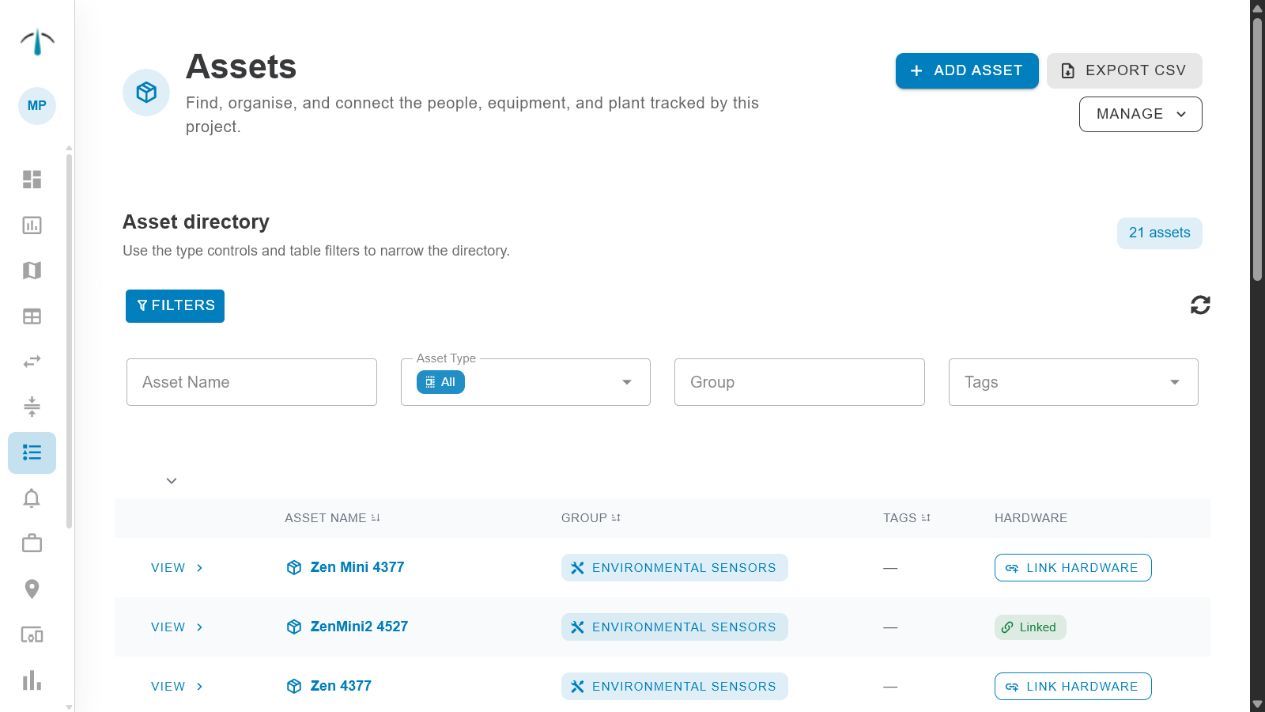
Use the Manage menu on the Assets page to create and organise asset groups and tags.
Groups and tags both organise assets, but they answer different questions. Use an Asset Group for Command's primary classification of the asset, and use Tags for the custom categories that matter to your operation.
Asset Groups: Command’s core classification
Every asset is created in an Asset Group. Groups sit within Command’s fixed top-level classifications:
- Person — people or staff you need to identify or monitor.
- Equipment — tools, equipment or other operational items.
- Plant — vehicles, machinery or plant.
The Assets page uses these classifications for its Staff, Equipment and Plant filters. Choose the group that best represents what the asset is, so your asset list remains clear and operational views are consistent.
Tags: your custom categorisation
Tags are customer-defined, colour-coded labels. An asset can have multiple tags, so use them for categories that cut across its main group.
For example, an item in the Equipment group could also carry tags such as Workshop, Hire fleet, Needs inspection, Customer A, Production line 2, or High value.
Use tags when you need to filter, find or report on a set of assets that does not fit neatly into one main group.
Create and apply a tag
- Open an asset in People & Assets.
- In Tags, select the add button if the tag does not yet exist.
- Enter a meaningful tag name and choose its colour.
- Save the tag, then select it on the relevant assets.
- Save each asset after changing its tags.
Use short, consistent names. Before adding a new tag, check whether an equivalent tag already exists to avoid near-duplicates such as Workshop, workshop and Workshop assets.
Maintain your categories
Review groups and tags when assets are added, moved between operational uses, or retired. Retire a tag when it is no longer needed; this preserves the historical record while keeping new selections tidy.
Avoid using tags to replace the primary group. Start with the correct Command group, then add tags only where you need the extra operational context.