
Manage beacon, RFID and logger hardware
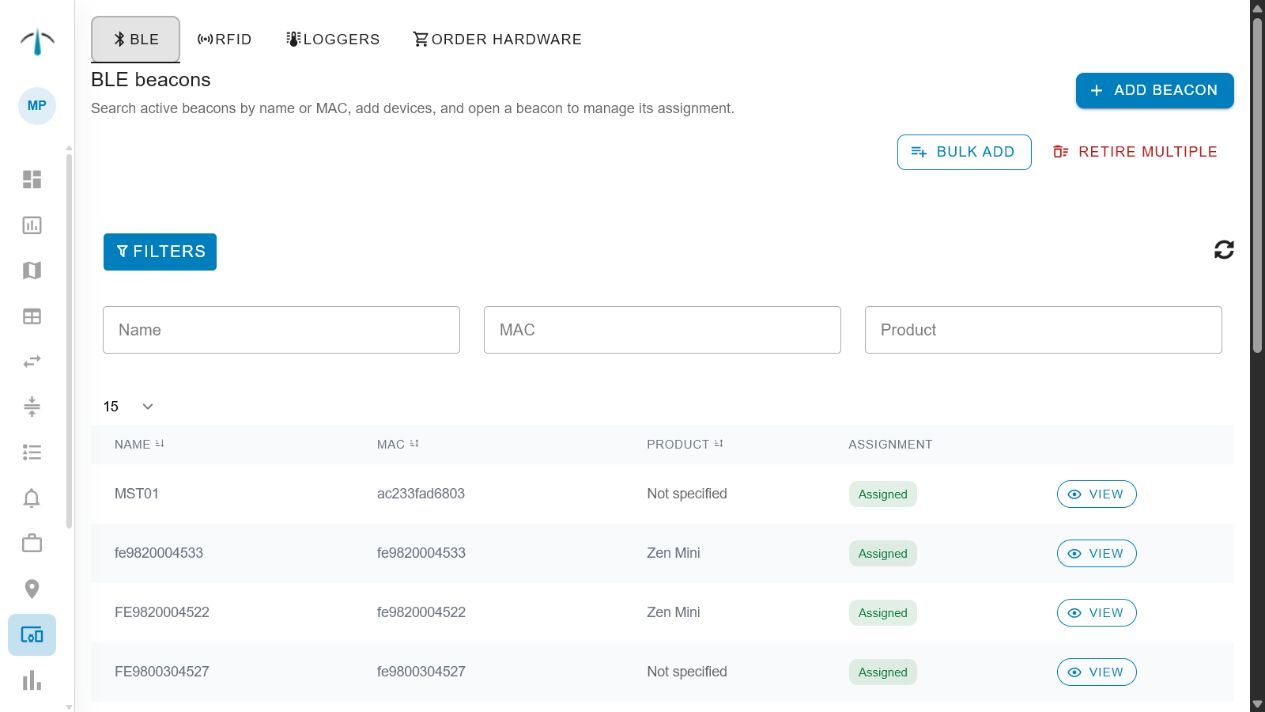
Use the Hardware page to register, filter and manage the devices available to your Command company.
Open Hardware to find the device records used by Command. The area separates devices into Beacons, RFID and Loggers because each collects information in a different way.
Hardware is normally provisioned by your reseller or the OnSight team. Your operational task is to identify the device correctly, link it to the right asset, and maintain that association when equipment is replaced or retired.
Choose the right hardware pattern
Beacons: real-time Bluetooth data
Beacons use Bluetooth Low Energy (BLE). They are used where Command needs current or near-real-time data from an asset, such as its presence, location context or sensor readings. A gateway or compatible receiver sees the beacon and supplies its observations to Command.
Use a beacon when the asset needs to be continuously visible or monitored while it is within your operational environment.
RFID: information when someone scans
RFID uses physical tags and scanners. It records an event when the tag is scanned rather than continuously reporting in real time.
Use RFID where an intentional scan is part of the process—for example, receiving an item, checking it through a point, confirming handover, or recording an inspection step.
Loggers: record now, upload later
Loggers capture data—commonly temperature—while they travel or operate away from a live connection. A typical use is placing a logger with a shipment, then reading and uploading its recorded data when the shipment reaches its destination.
Use a logger when the complete history matters, but live reporting is not required or available throughout the journey.
Find and maintain a device
In the relevant Hardware view, search for the device and open its record. Use its printed MAC address, RFID tag ID or other unique identifier to confirm you have selected the correct hardware. Keep its name meaningful and make sure it is linked to the correct asset.
Retire hardware when it is permanently out of service. Do not retire a device simply because it is temporarily inactive or is travelling with a shipment.
Beacon already in use
If adding a beacon reports that it is already in use in OnSight, its MAC address is already registered to an active device. Contact OnSight to resolve the company assignment. Include the beacon MAC and the company it should belong to.
When your account is a member of the assigned company, or you are a super administrator, Command can show that company's name if it can confirm the assignment promptly. If the company cannot be confirmed, it shows the general already-in-use message. The message stays in Add beacon with the MAC and your entered details. Changing the MAC or reopening the form clears the previous error; an earlier response will not attach an error to the new entry.
After Bulk add, failed MACs and their reasons stay visible in the dialog. Review these details before trying again. Submitting the same batch again retries the failed MACs and keeps devices that were successfully added.
Logger upload requests
Before someone uploads data from a logger, create a Logger upload request from its logger record. Command provides a request code—by default the logger MAC—which you give to the person uploading the logger data. This connects the incoming file or reading to the correct logger and asset.
After upload, review the resulting data on the asset and in the relevant report or monitoring view.
Keep physical and digital records aligned
Whenever a device is moved to another asset, replaced or removed from service, update the Command association as part of the same job. This protects the accuracy of the asset’s data history and prevents readings being attributed to the wrong digital twin.
For the asset-linking procedure, see Assign hardware to an asset.