
An asset is the digital record for the item, product, vehicle, piece of equipment or person you want to identify, track or monitor in Command. It becomes part of your digital twin when you link its pre-provisioned hardware.
Hardware is supplied and loaded into Command by your reseller or the OnSight team. Create the asset as you install that physical hardware, then link it from the asset record.
Asset directory at a glance
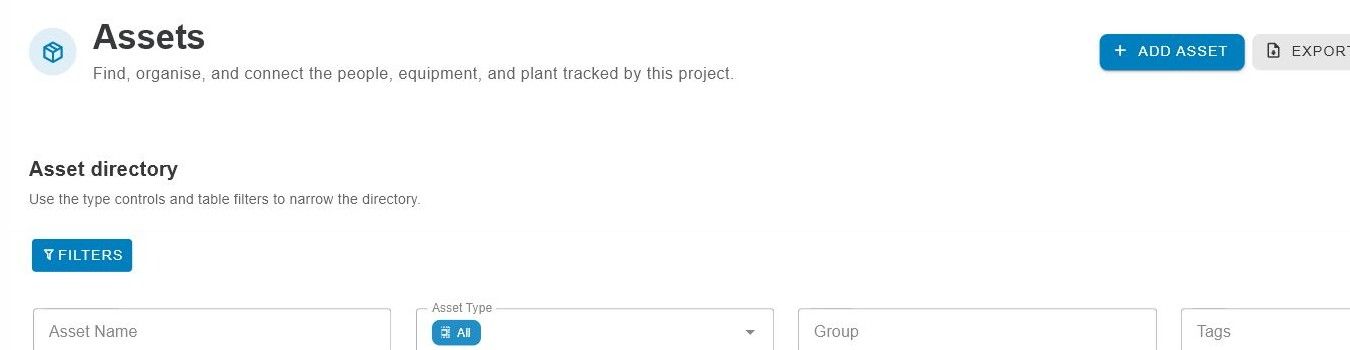
Use Assets to add records, filter the directory, and review linked hardware.
Create an asset
- Open People & Assets.
- Select Add.
- Enter a clear, recognisable Name.
- Choose an Asset Group.
- Select Save.
Use names that make sense on the Map, Status view, dashboards and reports. For example, use the fleet number, equipment name or product identifier your team already uses.
Complete the asset record
Open the asset after creating it and add the information that helps your team recognise and manage it.
- Description — add useful context, such as the asset's purpose, model, operational notes or location details.
- Custom Field 1 and Custom Field 2 — free-text fields for information specific to your business. They have no fixed Command meaning, so you can use them for an internal asset number, owner, serial reference, job code, cost centre or another identifier.
- Asset Group — classifies the asset so it can be found and filtered consistently. Choose the group that best reflects how your operation works.
- Tags — apply one or more colour-coded labels for flexible grouping across assets. You can create a tag from this screen when an appropriate one does not already exist.
- Image — take a photo or upload one from your device to make the asset easier to recognise in the field.
Select Save after changing the asset details.
Link the hardware
The asset page shows both Linked hardware and Available hardware. Search the available list and select Link, or use Quick Assign when you have the hardware identifier available. The linked hardware is what provides the asset's location and sensor readings.
Most assets have one piece of hardware. You can link more than one when the asset needs several sensor streams—for example, to capture location plus environmental or condition data. Use Unlink hardware only when you have removed or reassigned the physical device.
For the full installation workflow, see Assign hardware to an asset.
Review an asset in operation
At the top of the asset page, Command shows its last known location, current seen status and when it was last updated. The rest of the page brings together the linked hardware, hardware battery information, configured alerts, recent alert breaches, calibration where available, and sensor/activity history.
Use this page when investigating a specific asset, then use the Map for its wider location and movement context.
Retire an asset
Select Retire Asset when the asset is permanently no longer part of the operation. Retiring preserves its historical record while clearly marking it as no longer active.
Before you finish
Confirm that the asset has a clear name, the right group, the right hardware linked, and enough detail for someone else to recognise it. Then check that it appears and updates as expected in the Map or Status view.