
Linking hardware tells Command which physical device belongs to an asset. The hardware then supplies the location, sensor readings, battery information and alerts that make up that asset's digital twin.
Your reseller or the OnSight team loads ordered hardware into Command. You create the asset and link the device while installing it on the physical asset.
Start from the asset directory
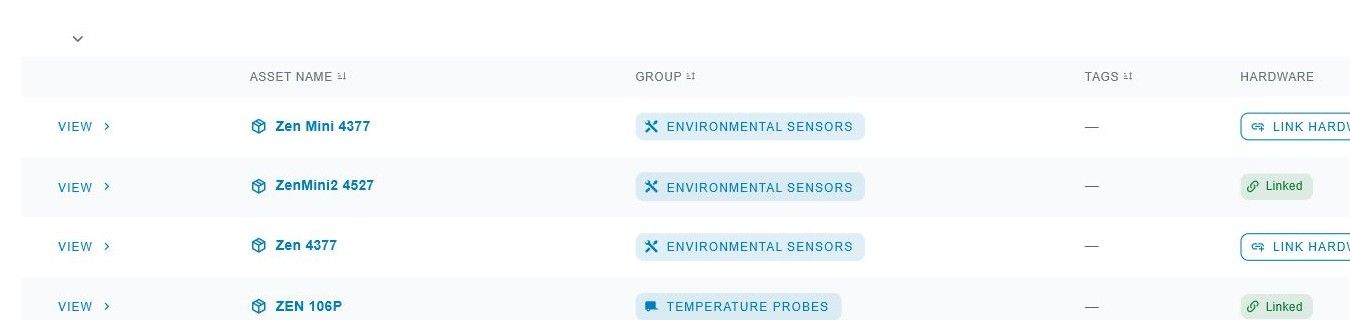
Choose Link hardware beside an asset to start the hardware-assignment workflow.
Before you start
Have the correct asset open in People & Assets and make sure the hardware is physically attached or ready to install. Check the label on the device so you do not link a device intended for another asset.
Recommended: Quick Assign with a QR code
Use Quick Assign when the device has a QR code. Scanning avoids typing errors and is the quickest way to match installed hardware to the asset.
- Open the asset.
- In Available hardware, select Quick Assign.
- Scan the QR code on the device.
- Wait for Command to check that the hardware is available.
- Select Assign.
Command links the matching available device to the asset.
If there is no QR code
In Quick Assign, enter the device's printed MAC address or the other unique identifier shown on it. Command searches for available hardware matching that code. Once it finds the correct device and shows that it is available, select Assign.
You can also search the Available hardware list by name or type and select Link beside the correct device.
Check the assignment
After assignment, the device appears under Linked hardware on the asset. Confirm that its name and type are correct, then allow time for it to report. Check the asset's last known location, last-updated status, Map view or sensor data to confirm Command is receiving the expected information.
Most assets need one device. Link additional hardware only when the same asset needs separate sensor streams—for example, location plus another operational or environmental measurement.
Correct a mistake
If hardware has been linked to the wrong asset, remove it from the physical asset if required and select Unlink hardware from the incorrect asset. Then link it to the correct asset. Do this carefully: historical readings remain associated with the asset they were linked to when reported.
If the hardware is already in use, it cannot be assigned again until its existing association has been resolved.